
[mkdf_button size=”” type=”” text=”Schedule Meeting” custom_class=”” icon_pack=”font_awesome” fa_icon=”” link=”https://travelisto.zohobookings.eu/#/customer/virtualmeeting” target=”_blank” color=”#FFFFFF” hover_color=”#FFFFFF” background_color=”#0000ff” hover_background_color=”#ffcc05″ border_color=”” hover_border_color=”” font_size=”18px” font_weight=”” margin=””] It is very easy. You will NOT need to install any software or app, it works on your browser. You have 2 options to Join the Virtual Meeting: 1. You should have received an email with a hyperlink – simply click on it and your browser will take you there automatically. The link looks something similar to this: Example Link: https://new-dev-travelisto.uk5.cdn-alpha.com/virtualmeeting/join123456789 2. If you have been provided with a 10-digit “Meeting Key”, then you click the button below and enter the Key when prompted. Simple! Use the 10-digit “Meeting Key” provided or check your inbox (or Spam) for your a direct hyperlink. No installation required for laptop/PC – just use your browser. For Android/iPhone you can download this appWant to schedule a Commitment-Free Video Appointment?
READ these simple steps before you connect:
1. Enter your 10-digit “Meeting Key” to join
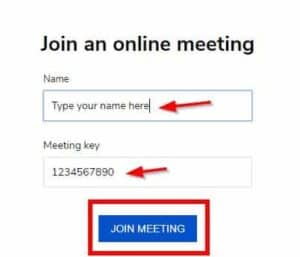
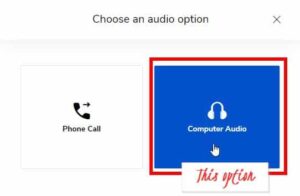
2. You will select “Computer Audio” when prompted
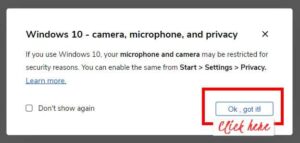
3. Click “Allow” when your browser or Windows asks for permission
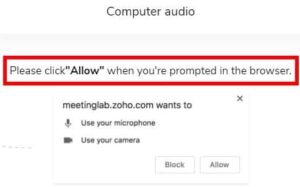
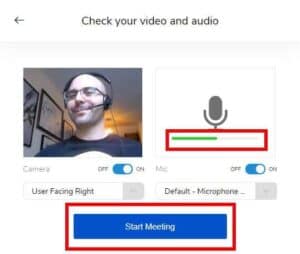
4. Check your video/audio and if works okay click “Start Meeting”
Ready to Join your Virtual Meeting online?



How to Join a Video Appointment
